
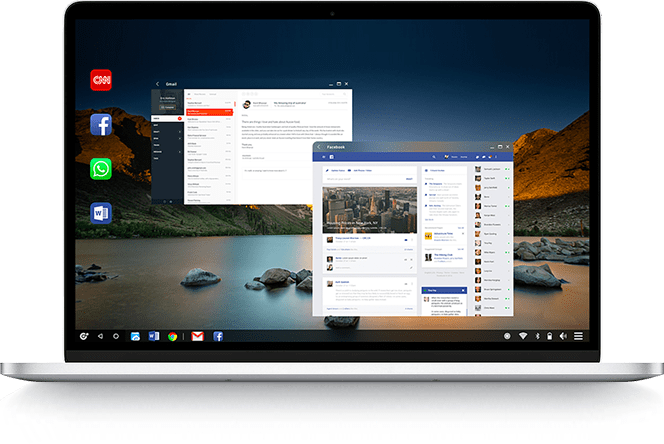
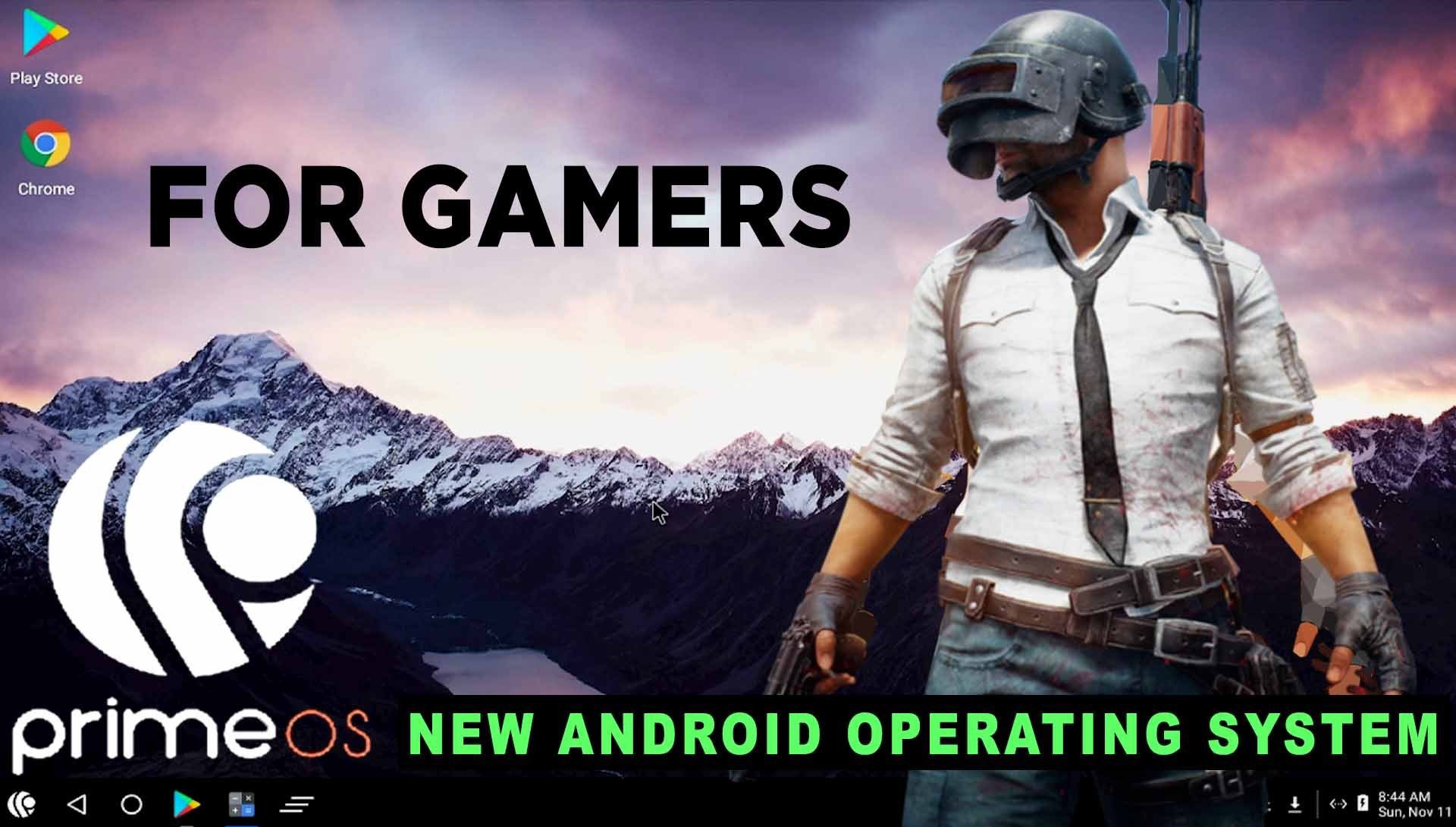
Use your old laptop as a smart phone- Install Google apps, play Android games and many more things.
Prime OS based on Android 7
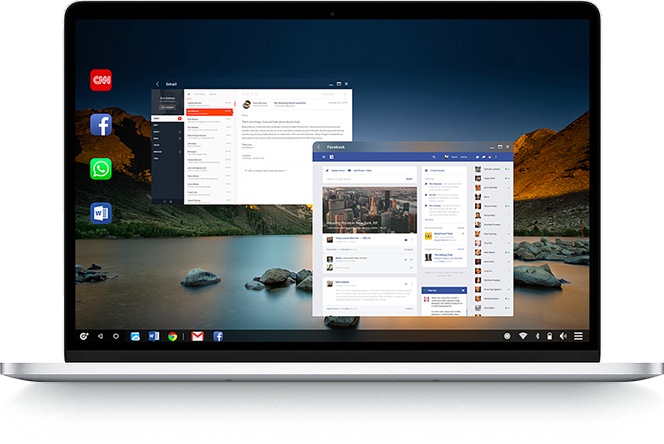
Normally Android runs in mobile phones and windows runs on PC. Window is heavy OS and it acquires more space in RAM. On the other side, Android is lighter OS and covers low space. You have an old laptop which hangs most of the time because of low end specifications then you can switch to Android because it will give better speed.
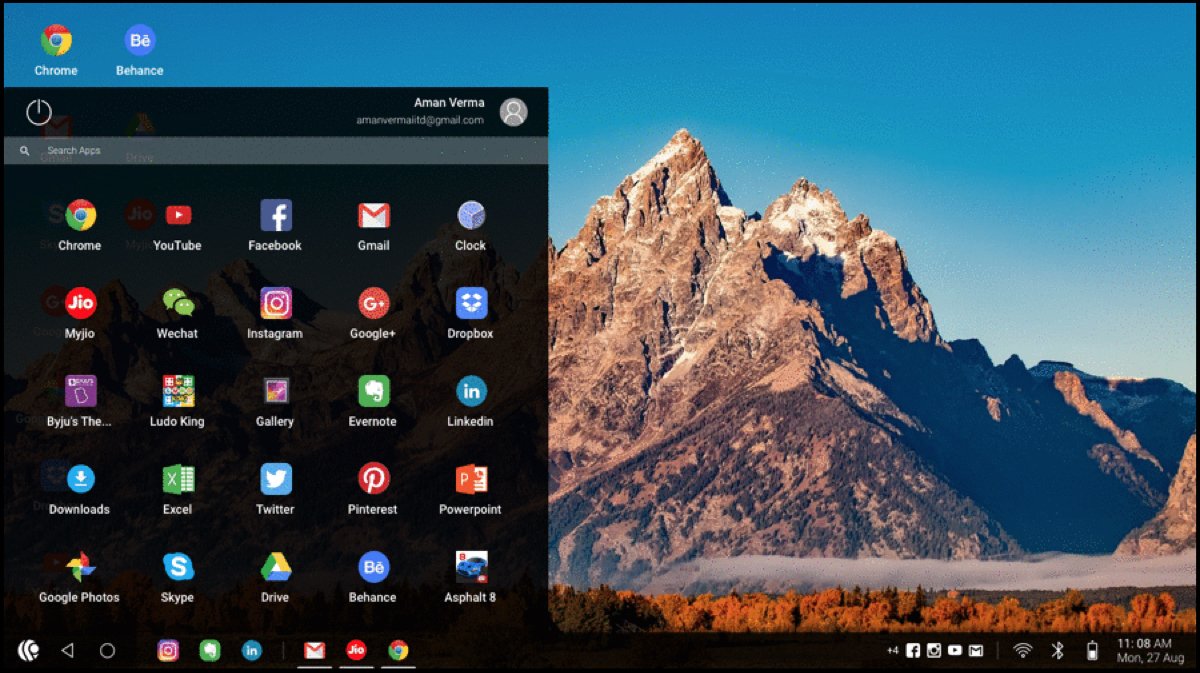
There is so many Android OS available on internet but we will discuss about prime OS. To install Prime OS, first of all go to the official prime OS website and choose file to download according to your laptop. You will get three options – Prime OS classic, standard and mainline.
PrimeOS Mainline : For the newest laptop after 2014
PrimeOS Standard : For laptop manufactured between 2011 to 2014
PrimeOS Classic : For the old laptops before 2011
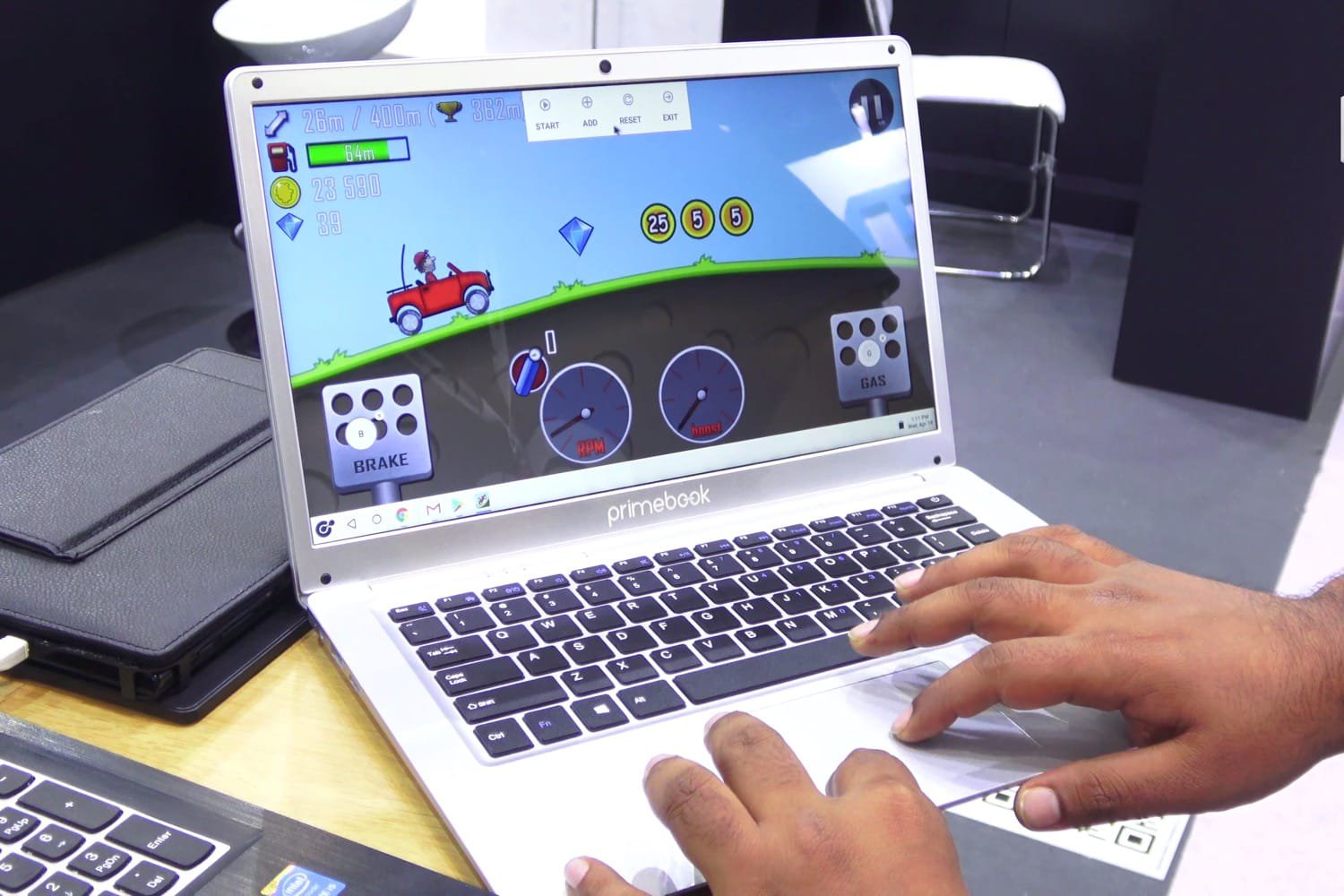
After choosing this category you would have two option to install Prime OS. From window installer and other is from creating bootable USB drive. Easier way is from window installer but some laptop don’t support this then you have to install via bootable pendrive. So lets learn the step to install from both methods one by one.
1. From window installer
Initially try to install through this method. For which you have to download the exe file of primeOS from here
After download one file from the above follow these steps :
- Launch the exe program and choose a drive to create partition to install Prime OS in it.
- Input the size in MB to create the new PrimeOS partition.
- Proceed to installation.
- Note : Ignore all the cmd and disk manager pop ups for formatting the new partition.
- The system will restart and installation process will begin.
- After installation, you will have the boot menu for both PrimeOS and Windows.
2. From bootable USB drive
For this method you should take back up first of you laptop, install these files (ISO and bootable software, link given below) and then follow the below steps :
Download bootable software Rufus or Etcher
- For this method, you need to download 2 files a) Etcher or Rufus b) Prime OS iso file and a USB drive of storage Capacity 8GB or above
- To flash ISO file in USB drive, plug in your USB drive and launch Etcher/Rugus then select ISO file and create bootable USB.
- For installing Prime OS in your laptop’s Hard drive, first create a new partition of minimum size of 16GB
- Turn off secure boot of your laptop and then boot up the Prime OS USB by pressing Esc or F12, depending on your system and selecting the plugged USB to boot from.
- Select the “Install Prime OS” option from GRUB menu.
- The installer will load and you will have an option to choose partition which you have selected earlier to install Prime OS, choose it and select Ext4 to format this partition.
- When it asks you to install as R/W, select YES otherwise the OTA function will not work.
- Then accept the Install GRUB option, when asked.
- After finishing installation, unplug the pendrive and enjoy Prime OS on your laptop.
 Techistan